I started by selecting the problem area with the Quick Selection. Using the eyedropper tool, I got a sample of skin color. I created a new layer and filled the selected area with the target skin tone color. I used the Paint Bucket Tool for this. I set the Blending Mode to color and adjusted the opacity of the layer. The hardest part was adjusting the opacity to look the best that it could. The easiest part was getting the skin color with the eyedropper tool.
Monday, April 15, 2013
Tower
I started by opening this image in Photoshop. I increased the highlight levels of the tower. I created a new layer and renamed it "Straight Tower". I selected a clone source by pressing down the Alt key while using the Clone Stamp Tool. I drew a vertical guide and changed the offset angle to 4.0 degrees. I clicked on the "Straight Tower" layer and painted over the tower. This goes over the original tower and makes a new tower appear that is straighter. Then, I did the details around the bottom of the tower and the sky. I selected a new clone source and painted over more areas of the picture. The hardest part of this tutorial was fixing all the the detail work because it was difficult to make it look correct in the picture. The easiest part was changing the highlight levels of the photo.
Self Makeover
The first change that I made to the photo was smoothing the skin tone and texture. To do this, I duplicated the original photo layer and applied the Filter/Nose/Median filter. I added a layer mask and painted over some of the main facial lines. I reduced the opacity of this layer. Next, I created a new layer and worked on the color of the Iris. I painted over my Iris with a brown color and changed the blending mode to Soft light. Then, I selected the white of the eyeball using the Quick Selection Tool. I added a Hue and Saturation Adjustment Layer and lowered the saturation and raised the brightness. Then, I applied the Blur filter a couple of times. I created a new layer and painted an irregular shaped spot of white on the eyes where I wanted the highlight to be. To add more depth to the eye, I painted with black along the underside of where the eyelid is and lowered the opacity of this layer. On a new layer, I also added some more white to the inner part of the iris. Using a small brush, I painted a thin black line along the top edge of the eyelashes to act as eyeliner and used the Blur Tool on it. I created a new layer and added some brown colors to my eyelids to act as eye shadow. Then, I change the Blending Mode to Soft Light and changed the opacity. I added a pinkish color to my lips and changed the opacity. Lastly, I added some light brown to my hair. To do this I went into Quick Mask mode. I selected black from the Swatches palette and painted over the areas of hair that I wanted to be colored. After I painted over all of the hair that I need to I went back into Standard Mode. I went to Select>Inverse and then to Image>Adjustments>Hue/Saturation. I adjusted the levels to give the hair a brown color. The hardest part of this tutorial was changing my hair color because I had a difficult time changing it without effecting other things that I had done to my eyes. The easiest part was adding the eye shadow and lip stick.
Note: In the picture above with the arrows substitute pink with brown.
Thursday, April 11, 2013
http://www.photoshopessentials.com/photo-editing/content-aware-fill-cs5/
I pressed Ctrl+J to create a copy of the image. Using the Polygonal Lasso Tool, I clicked around the post to make a selection around it. I went to Edit>Fill and chose Content-Aware in the Contents section at the top. To remove the stump, I went through the same process, except I selected it using the Lasso Tool. The easiest part was using the Polygonal Lasso Tool, because it easily makes a cornered selection. The Lasso Tool was a little more difficult, because it was a free handed selection.
Tuesday, April 9, 2013
http://psd.tutsplus.com/tutorials/photo-effects-tutorials/beyond-the-healing-brush-%E2%80%93-removing-objects-from-photos/
First, I copied the background layer and hid the original layer. I took the eraser tool and erased out the chair. Next, I unhid the Background layer. I selected the Polygonal Lasso Tool and selected an area of grass about the size of the first leg of the chair. I copied and pasted the selection into a new layer and covered the chair with the selection. Then, I merged it with the Background layer. I continued to do this for the rest of the chair. I made a new layer and used the Polygonal Lasso Tool to select an area around the missing shadow segment. I clicked Edit>Stroke to get a black line. I used the Polygonal Lasso Tool to select the right, left and bottom sides of the selection, and then, I deleted them. I added a Gaussian Blur. I used the Healing Brush to get rid of small edges in the grass. The hardest part of the tutorial was getting rid of the edges, and the easiest part of covering up the chair.
http://www.photoshopessentials.com/photo-editing/spot-healing-brush/
I started by adding a new blank layer above the Background layer. Using the Spot Healing Brush, I clicked on the problem areas of the girl's face. On small areas, I just clicked on them. But on bigger areas, I dragged the mouse over them. I learned that the settings of the Spot Healing Brush can be changed to help get the best quality result. The easiest part of the tutorial was creating the new layer, and the hardest part was trying to get some of the more difficult problem area to look the best that they could.
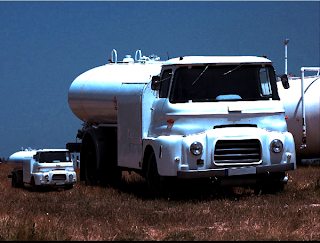
"Baby" Truck

I started by adding a selective color and a level adjustment layer. I clicked to the top left of the truck using the clone stamp tool, and then, I created a new layer. I changed the clone source settings and "painted" in the "mini truck." I used the eraser tool to clean up the edges of the truck and used the Burn tool to burn areas of the "mini truck" layer. I added an Exposure adjustment and a Gradient Map. Lastly, I went to Filter>Blur>Blur.
Subscribe to:
Posts (Atom)