
Thursday, February 7, 2013
Brushes Masterpiece

Text of Choice

http://www.adobetutorialz.com/categories/Adobe-Photoshop/Text-Effects/page/3
I begin by typing "VICTORIA" on a new document. Then, I added a gradient overlay and bevel and emboss to the text. Next, I went to Layer>Layer Style>Create Layers. I then merged all the text layers. From the Filter menu, I went to artistic then chose the plastic wrap effect. I then applied this effect again by pressing Control+F. I pressed Control + U to pull up the hue/saturation window and I changed the color to a blue. Next, I changed the bevel and emboss settings and added a stroke. Lastly, I duplicated the layer and changed the layer mode to color dodge. I really like this tutorial and I think it was fun. The hardest part was applying the plastic wrap effect. The easiest part was typing the text.
Tuesday, February 5, 2013
Text Transformation

I first started by creating a new document and filling the background with a blue color. I then used the brush tool to paint a darker blue around the edges of the document. Next, I took the Horizontal Type tool and typed my name. Then, I changed the parameters of the text. I positioned the letters and copied them in a darker blue to put as a shadow underneath. I added an outer glow to the darker letters. Then, I added an inner shadow, inner glow, outer glow, and gradient overlay to the top letters. Next, I added a satin effect to the last letter. I created a new layer and added a shadow behind the letters using the Brush Tool. I then created an ellipse, changed its parameter, and gave it an inner shadow. An ellipse like this was added to each letter. Lastly, I created bubbles by using two ellipses. One ellipse had an inner shadow and the other had a gradient overlay. Both of the shape's layer have an opacity at 0%. I then copied the bubbles, positioned them, and used the transform tool to size them. I really like the way the text came out. I think this was a fun tutorial. The hardest part was getting the bubbles to work the way I wanted them to. The easiest part was setting up the background.
Wednesday, January 30, 2013
Inner You
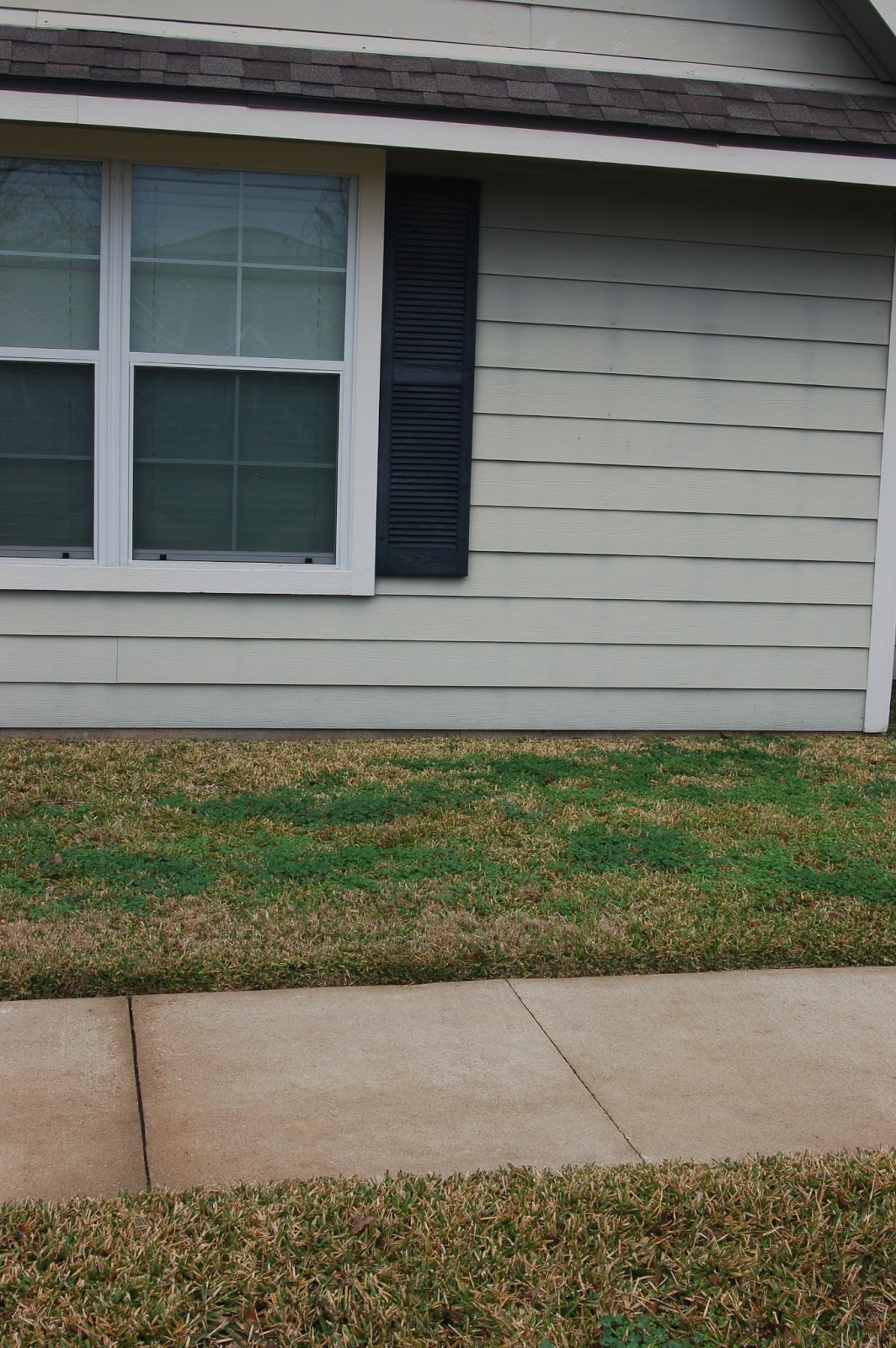


To create this image, I began with a picture of my house and sidewalk. Then, I took a full body picture of myself and selected the necessary areas. Next, I used refine edge to smooth and fix some of the selected areas, and I moved the picture of me on the the house image. Then, I worked on my shadow. I chose a giraffe to be my shadow (inner me), because I am short so the opposite would be that I am tall inside. I took the picture of the giraffe and selected the giraffe out of it, selected the inverse and changed it to Black & White in refine edge. I then used refine edge to try to smooth it out more and went back and changed some of the selected area until it was smoother. Next, I took the giraffe and put it onto my house and sidewalk picture. Then, I changed the opacity of it and used the move tool, transform tool, and warped it to position it how I wanted it. Then, I add text that said "Tall Inside" using the text tool. I think this was a cool project. The hardest part was getting the giraffe shadow to look and be positioned right. The easiest part was inserting the text.
Friday, January 25, 2013
Tattoo

http://www.youtube.com/watch?v=ll5dWnVfT2Y
To create this image, I first I found a picture of someone's feet. Then, I created butterfly shapes that would make up the tattoo design. I set it to soft light mode and placed the tattoo where I wanted it. Next, I created a displacement map and duplicated the image. I created a new layer, pressed shift-backspace and made it a neutral gray color. I switched to a blend mode of overlay and used the dodge tool to add highlights to the feet. I also duplicated that layer and switched to the burn tool to make areas darker. Then, I saved the displacement map, went back to the original image and brought up the tattoo. I converted to smart filters and made sure the tattoo was positioned where I wanted it. I went to Filter>Distort>Displace and tried different scale numbers and loaded the displacement map. Once I had the numbers that worked with the distortion best, I continued by using a layer mask to fix some pieces. I changed the mode to subtract and lowered the opacity. The hardest part of this tutorial was using the burn and dodge tools to add darkness and highlights because it was hard to tell where they should go. The easiest part was creating the butterflies that would make up the tattoo.
Tuesday, January 22, 2013
Combining Vectors with Photographs (Cranes)

Displacement Map

Subscribe to:
Posts (Atom)